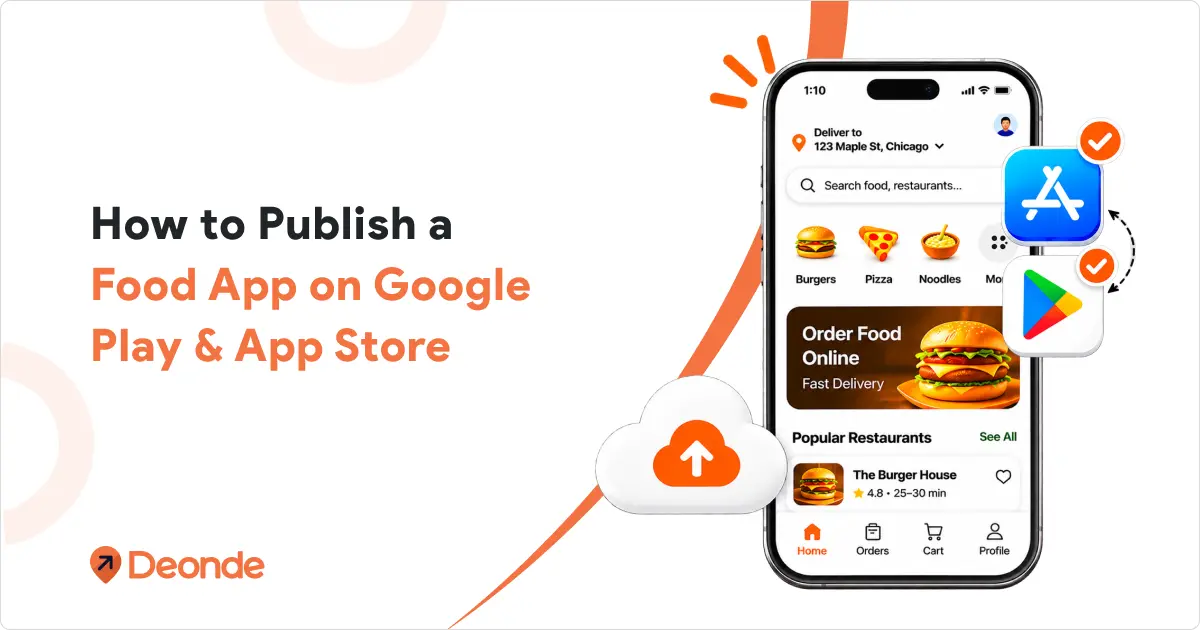
Publishing a food delivery app means six separate store records: customer, driver, and merchant apps on iOS and Android.
You submit from your own developer accounts, pay $99 per year to Apple and $25 once to Google, and pass review by showing each app works as a real, role-specific product.
This guide covers the full process for the three apps in a delivery marketplace: the customer app, the driver app, and the store (merchant) app. It explains what you need, what each store checks, why apps get rejected, and who does what.
At a Glance
- Accounts: an Apple Developer Program membership ($99 a year) and a Google Play developer account ($25 one-time), both in your business name.
- Review time: Apple says most submissions are reviewed within 24 to 48 hours. Google says reviews can take up to seven days or longer.
- Cost on Deonde: an app under your own brand is $499 once. The Deonde-branded driver and store apps are free on every plan.
- Selling in the meantime: your ordering website goes live in about 3 days, so you can take orders while the apps are in review.
Which Apps Do You Publish: Customer, Driver, or Partner?
A delivery marketplace runs on three mobile apps, each for a different person:
- Customer app: shoppers browse every store, order, pay, and follow their driver on a map.
- Driver app: your drivers get jobs, navigate, and record proof of delivery.
- Store (Partner) app: each restaurant or shop accepts orders and manages its menu, stock, and payouts.
You do not have to put all three under your own brand. On Deonde, the driver and store apps come in two versions:
| App | Who uses it | Free Deonde-branded version | Your-brand version |
| Customer app | Shoppers | Not offered (the ordering website is included) | $499 once, on every plan |
| Driver app | Your drivers | Free, on every plan | $499 once, on Premium and Growth |
| Store Partner App | Restaurants and shops | Free, on every plan | $499 once, on Growth |
Only apps under your own brand are published from your own store accounts. The free Deonde-branded driver and store apps are already in the stores.
Your drivers and vendors download them and log in to your marketplace, so you have nothing to publish for those two.
Most new marketplaces start with one of three setups:
- Website only: no app fees. Shoppers order in the browser.
- Website and your customer app: $499 once. Drivers and stores use the free Deonde apps.
- All three apps under your name: $1,497 once (three apps at $499), on the Growth plan.
What You Need Before You Start
Gather these first. The developer accounts take the longest, so start there.
- A registered business: Apple and Google both verify organizations. You need your exact legal entity name and address, and a person with the legal authority to sign for the company.
- A D-U-N-S number: This is a free nine-digit business ID from Dun & Bradstreet. Both stores use it to verify your company. Many companies already have one, so look yours up before you request a new one.
- A website and a work email: Your ordering website on your own domain can serve as your business website.
- Your brand kit: App name, logo, icon, and colors.
- Legal pages: A public privacy policy URL, your terms of service, and a support email or page.
- Store listing text and screenshots: They must show your branded app as it really works.
- A demo login for the reviewers: Apple and Google reviewers need to sign in and see real content.
Follow these 5 steps to Publish Your Food Delivery App in the App Store and Google Play Store
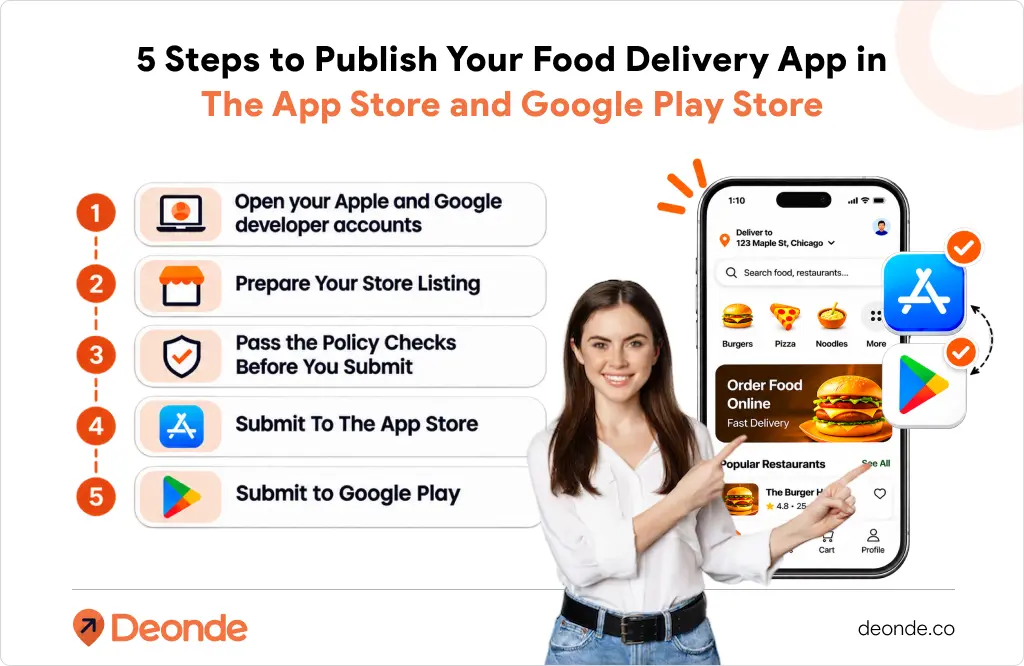
Step 1: Open your Apple and Google developer accounts
Both stores publish an app from a developer account. Register both as an organization in your business name, so customers see your company as the seller.
Apple Developer Program
- Fee: $99 per year, paid to Apple.
- Seller name: with an organization membership, your apps are listed under your legal entity name. An individual account lists your personal name.
- D-U-N-S: companies must provide a D-U-N-S number registered to their legal entity. If you request a new one, Apple says to allow up to 5 business days to receive it, then up to 2 more business days for Apple to receive your information from Dun & Bradstreet.
- Timing: organization enrollment often takes from a few days to about two weeks, because Apple verifies your legal entity. A missing D-U-N-S record, or a name that doesn’t match it, usually causes the delay.
Google Play Developer Account
- Fee: $25, one-time.
- D-U-N-S: an organization account needs a D-U-N-S number. Google says you can get one from Dun & Bradstreet for free, so avoid third-party services that charge high fees.
- Verification: Google checks your business details against that D-U-N-S record, so your legal name and address must match it.
- Testing rule for personal accounts: Google requires personal accounts created after November 13, 2023, to run a closed test with at least 12 testers for 14 continuous days before they can apply for production. Organization accounts are not subject to this rule, which is one more reason to register as a business.
Start this step first: You can set up both accounts while Deonde prepares your website and admin panel, so you lose no time. The same D-U-N-S number works for both stores.
Step 2: Prepare Your Store Listing
The listing is what customers see before they download. Use the same name, icon and message on both stores.
| Apple App Store | Google Play | |
| App icon | 1024 × 1024 PNG, no transparency, taken from the app build | 512 × 512 32-bit PNG, up to 1024 KB, uploaded to the listing |
| Banner | None | Feature graphic, 1024 × 500, JPEG or 24-bit PNG, no transparency |
| Screenshots | Required, at the exact sizes for each device type | Required, at least 2 phone screenshots |
| Text | App name (up to 30 characters), description, keywords | App title, short description (up to 80 characters), full description |
| Links | Support URL and privacy policy URL | Privacy policy URL |
Google’s image rules are on its preview assets help page. Apple’s required fields are listed in App Store Connect help.
Four tips for a listing that passes review:
- Show the real app: Screenshots, the name and the description must match what the app does. Both stores reject misleading listings.
- Use your own brand only: Do not use another company’s name or logo in your app name, icon, or screenshots.
- Say who each app is for: State whether the app is for shoppers, drivers or stores, so reviewers and users know who it serves.
- Make the support link real: Apple expects the support URL to lead to genuine contact details.
Step 3: Pass the Policy Checks Before You Submit
Most rejections come from missing information, not from bugs. Check these five points before you press submit.
- Privacy policy and data disclosures: Apple requires a privacy policy URL for every app and asks you to describe your data practices in App Store Connect. Google asks for the same in its Data Safety form. You are responsible for keeping both accurate when features change.
- Account deletion: If people can create an account in your app, Apple requires them to be able to start deleting it inside the app. Apps outside highly regulated industries should not make people call, email, or chat with support to do it. Google asks for the same, plus a web link where users can request deletion, which you enter in the Data Safety form. This mostly affects the customer app.
- Location permission: Ask for location only when a feature needs it, and explain why. Google allows background location only when it is relevant to the app’s core functionality, and it requires a permissions declaration form, a short video demonstration, and a prominent in-app disclosure.
- Reviewer access: Apple expects working demo credentials in App Review Information, and the account must not expire. Google reviewers need the same, which you provide in the App content section of Play Console. Fill the account with sample stores, a menu, and an order, so reviewers can see the whole flow.
- The template rule: Apple guideline 4.2.6 says apps made from a commercial template or app generation service are rejected unless they are submitted directly by the provider of the app’s content. For a white-label app, that means you, the business owner, submit from your own developer account. This is why Deonde publishes your apps under your accounts, not its own.
Step 4: Submit To The App Store
Apple reviews every app through App Store Connect. With Deonde, your launch team builds and uploads the app from your account. These are the stages:
- Create the app record in App Store Connect with the app name, language, and bundle ID.
- Upload the build: Apple processes it, and then you attach it to a version.
- Add the listing: description, keywords, screenshots, support URL, and category.
- Complete App Privacy: enter the privacy policy URL and describe the data the app collects.
- Fill in App Review Information: contact details, the demo login, and notes that explain how the app works for shoppers, drivers or stores.
- Choose how to release it: after approval, automatically, or on a date you set.
- Press Submit for Review: The status moves from Waiting for Review to In Review, then to Approved or Rejected.
Apple says that on average 90% of submissions are reviewed in less than 24 hours, and some take longer.
If your app is rejected, read the message in App Store Connect, fix the exact issue and resubmit. You can use TestFlight to try a build with real testers first, but it does not replace App Review.
Step 5: Submit to Google Play
Google manages everything in Play Console. These are the stages:
- Create the app and choose its default language.
- Complete the App content section. This covers the privacy policy, app access (the reviewer login), the ads declaration, the content rating, the target audience and the Data safety form with its data deletion questions.
- Fill in the main store listing: title, short and full descriptions, icon, feature graphic and screenshots.
- Upload the app bundle to a testing track first. A new personal account must finish its 14-day closed test here. An organization account is not subject to the 12-tester rule.
- Create a production release and send it for review from the Publishing overview page. Changes are not sent for review automatically.
Google says reviews can take a few hours or up to seven days, and longer in exceptional cases. A first app from a new developer account tends to sit at the slower end. If Google rejects a new app, it is not published until you fix the issue and send it for review again.
What is different for the customer, driver and store apps
The steps above are the same for all three apps. Each app has its own reviewer questions, so prepare for them.
Customer app
This is the public app, so it gets the most attention.
- Give reviewers a customer login that can browse stores and reach checkout.
- Add account deletion inside the app, and the web deletion link for Google.
- Ask for location when the shopper needs it, for example, to set a delivery address, and explain why in the permission text.
- Show browsing, checkout, and live order tracking in the screenshots.
Driver app
The driver app uses a driver’s location during deliveries, which is why Google looks at it closely.
- If the app keeps tracking while it runs in the background, Google requires the background location declaration, with a video and an in-app disclosure.
- Say in the listing that the app is for delivery drivers who work for your marketplace.
- Give reviewers a driver login with a sample job, so they can see accepting, navigating, and recording proof of delivery.
- If you start on the free Deonde-branded driver app, it is already in the stores, and you publish nothing.
Store (merchant) app
Only vendors you have approved can use the store app.
- Say in the listing that the app is for restaurants and shops registered on your marketplace.
- Give reviewers a demo store login with a sample menu and an incoming order, so they can accept it with a prep time.
- Vendors can use the free Deonde-branded store app on every plan. An app under your brand is available on Growth.
Why Apps Get Rejected And How To Avoid It
A rejection is normal and fixable. These are the most common causes:
| Common reason | Store | How to avoid it |
| Privacy policy link missing or broken | Both | Use a public HTTPS page and check that it opens without a login |
| No working demo login, or it expired | Apple | Create a login that does not expire and fill it with sample data |
| No in-app account deletion | Apple, Google | Add deletion inside the app, and add the web link for Google |
| Background location without a clear reason | Complete the declaration form, the video and the in-app disclosure | |
| Listing does not match the app | Both | Use real screenshots and an honest description |
| White-label app submitted by the provider | Apple | Submit from your own developer account |
| Incomplete privacy labels or Data safety form | Both | Review every data type the app collects, including third-party code |
| Crashes or broken links | Both | Test on real devices before you submit |
When a store rejects your app, read the reviewer’s message, fix the exact issue, and resubmit.
How Deonde Publishes Your Apps
Deonde is a SaaS platform: it builds, hosts, and updates the apps, and you own the developer accounts and the brand. Your store listing shows your app name, icon, and developer name, with no Deonde logo inside the app.
You provide:
- Your business details and D-U-N-S number
- Apple and Google developer accounts in your business name, with access for your launch team
- Your app name, logo, icon and colors, plus your privacy policy and support details
- Your approval of each screen before it goes public
Deonde provides:
- The apps, built with your brand and connected to your stores, drivers and website
- Submission to the App Store and Google Play from your accounts
- Platform updates, included in your monthly plan
- Technical support Monday to Friday at [email protected]
Here is the timeline from signup to first orders:
| When | What happens |
| Day 1 | You send your brand details: app name, icon, colors, languages, currency and payment methods |
| About day 3 | Your ordering website and admin panel go live. You add stores and run test orders |
| Weeks 2–3 | Apple and Google review the apps, which usually takes 1–2 weeks |
| By day 30 | Most business owners take their first orders |
A branded app costs $499 once per app, on top of a monthly plan from $99. Pro covers the customer app, Premium adds the driver app and Growth adds the store app. Growth also includes a Launch Program with a launch manager. See the food ordering app page for the three launch options and the pricing page for every plan.
After launch: updates, push notifications and ratings
- Updates. Platform updates are included in your plan, and Deonde keeps the apps up to date. Each new app version goes through store review again, but updates to an established app usually clear faster than a first submission.
- Push notifications. Order updates and offers reach customers under your marketplace name. Push campaigns and customer segments come with Premium and up.
- Ratings and reviews. They build up under your own listing, not under someone else’s marketplace. Ask happy customers to rate the app after a good delivery.
- Privacy answers. If you add a feature that collects new data, update your App Privacy details and your Data safety form. Apple says you are responsible for keeping them accurate.
- The website. Your ordering website works in any browser, so keep sharing store and offer links while people download the app.
The Bottom Line
Publishing a food delivery app is mostly paperwork, not programming. Open Apple and Google developer accounts in your business name, prepare your brand and legal pages, pass the policy checks, and let your platform provider submit the apps.
With Deonde, your website goes live in about 3 days, store review takes 1–2 weeks, and most owners take their first orders within 30 days.
Ready to see the apps? Book a free demo for a 30-minute walkthrough of the real apps, the costs, and a launch plan for your market, or calculate your monthly cost.
Frequently Asked Questions
Can I Publish A Food Delivery App Without Coding?
Yes. With a white-label platform, the provider builds the apps, and you supply your brand, your developer accounts, and your approval. Deonde sets up your website and admin panel in about 3 days and submits your branded apps to the stores.
Whose Developer Account Is The App Published Under?
Yours. You open an Apple Developer account (99 a year) and a Google Play developer account ($25 one-time), and Deonde submits your branded apps there, so the listing shows your business as the seller.
How Much Does It Cost To Publish On Both Stores?
The store fees are $99 a year for Apple and $25 once for Google. On Deonde, each app under your brand costs $499 once, on top of a monthly plan from $99. The Deonde-branded driver and store apps are free.
Can I Register As An Individual Instead Of A Company?
You can, but Apple then lists your personal name as the seller. On Google, new personal accounts must run a closed test with 12 testers for 14 days before production. A business account avoids both.
Can I Take Orders Before The Apps Are Approved?
Yes. Your ordering website goes live in about 3 days, so you can sign stores, run test orders, and take real orders while Apple and Google review the apps.
What If Apple Or Google Rejects My App?
Read the reviewer’s message, fix the issue, and resubmit. Most rejections come from missing privacy details, demo logins, or account deletion. Deonde’s support team helps with your apps Monday to Friday.
Do My Apps Need Account Deletion?
Yes, if people can create an account in them. Apple requires deletion inside the app. Google requires an option in the app plus a web link.